Hiển thị các bài đăng có nhãn Windows Tricks. Hiển thị tất cả bài đăng

Thứ Năm, 25 tháng 10, 2012

Recover Deleted Data Using Wise Data Recovery 3.18.170

Hi friends, Have you lost your private data by formatting or have you ever deleted useful files like image, music, videos or document by mistake then this guide is for you, to manage this issue there is two options.
  1. Restore system point.
  2. Recover your data by data recovery software.
Unfortunately first option is not enough because using this method you can only able to recover your system files, This article focuses second method - Recover your files by data recovery software

In this post I'm telling about wise data recovery, Wise data recovery 3.18.170 is a powerful data recovery tool can easily recover your deleted files. It is totaly free of charge, Recover documents such as word, excel, txt etc. reprocess photo/image such as jpg, png, gif etc. recover e-mail files specified as .eml etc.

See also :

Thứ Ba, 12 tháng 6, 2012

How To Monitor Hidden Internet Connections

If you're online at this time on ThingsGuide, your computer also connects to many other connections that are running in the background, Which not only reduces the speed of your internet but also increases your data bandwidth usage, Sometimes it can be gateways for viruses and malware. However, the many programs  that you have installed on your computer, also connect to internet based services, Here are a few ways to monitor and detect those internet connections.


Using Command Prompt

Type cmd into the run box from start menu and click on OK

Type the characters netstat –abf 5 > activity.txt and hit the enter key. Wait a few minutes for Windows to record the processes.

Monitor hidden internet connections using command prompt

Type Ctrl + C on your keyboard to stop recording.

Type activity.txt and hit the enter button. Notepad will now open with the recorded internet connections.

Using Nirsoft CurrPorts

The Nirsoft CurrPorts app lists detailed information regarding background internet connections of a computer. Go to the Nirsoft CurrPorts website and download the currports.exe

Monitor hidden internet connection using nirsoft currports

through this tutorial you can also check for unknown processes of viruses and malware who often use ports and incoming and outbound internet connections.

Chủ Nhật, 3 tháng 6, 2012

Create Some Fake Computer Viruses

make some fake computer viruses
Today I am sharing another interesting article about "How To Make Fake Funny  Computer Virus". In this tutorial I teach you how to make a harmless and fake virus, Basically what it does is just log off and then "Shutdown" your computer.
Disclaimer - Everything here is for informational purposes only.

1. Fake error message

Step-1 Make a new text document with notepad, type msg * YOUR MESSAGE, image refer below:

Type your fake massage

Step- 2 Now save as Play me.bat As always, make sure that you select All files instead of Text Document.


Here's how it will look like once it is launched:

Fake error message

2. Forced Shutdown

Step-1 Put the following into your Notpad:

@echo off
shutdown -s -f -t 60 -c "YOUR MESSAGE HERE"

(Replace 60 with the length of the countdown you want)

Step- 2 Now save as play me.bat

Here's how it will look like:
Fake forced shutdown

To stop it, open Run from the start menu and type shutdown-a. Enjoy

Thứ Bảy, 2 tháng 6, 2012

How To Change Your IP Address

My IP address
Can I change my IP address? is probably the most commonly asked question, IP address is a numerical way of identifying your computer. Every computer has its own unique IP. If you get your IP blocked somewhere and you don't like it then this guide is for you, Before trying this method, turning off or unplug your modem/router for few minutes.

Staps:


1. Type "CMD" into the run box from start menu and hit OK


2. Type "ipconfig" into the command prompt (This will show you info about your IP address)

3. Type "ipconfig /release" and hit "Enter (This will remove your currnt IP)

How to change my IP address

4. Type "ipconfig /renew" and you will be presented with a new IP address

5. Type "exit" and leave the prompt.

If this does not answer of your question, please leave your comment.

Thứ Bảy, 12 tháng 5, 2012

How To Speed Up Internet Connection

Today I am sharing another interesting article describes how to speed up your Internet connection without use of web accelerators, The speed of your internet connection doesn't just depend on the speed of your network, By default, most system have some bandwidth reserved for nothing, You can change this the following way, In order to do this you will have to hack the system registry.


Step 1- Click run in your start menu, Type gpedit.msc into the box and press OK

Speedup+internet+connection

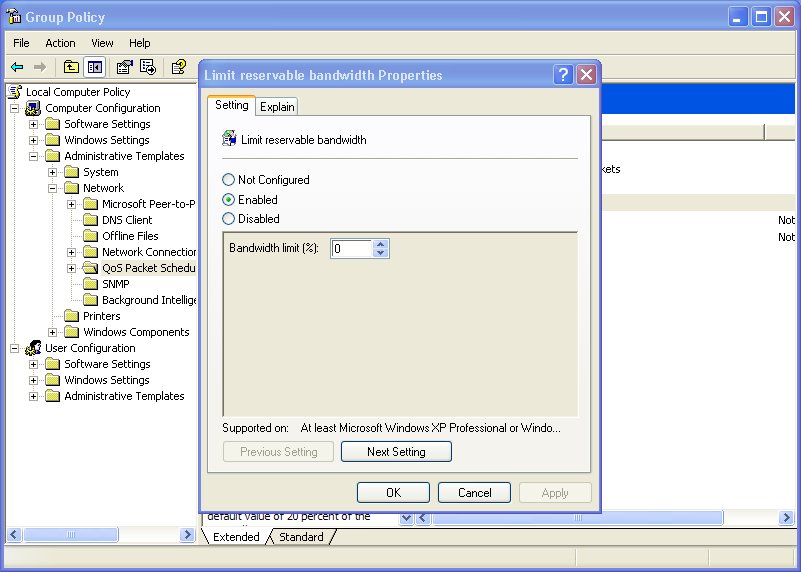
Step 2- Navigate Local computer policy > Computer configuration > Administrative template > Network > QoS pocket scheduler then open Limit reservable bandwwidth

Step 3- Click enable and change the bandwidth limit to 0% instead of 20%, Image refer below

speedup+internet+connection

Step 3- Click on apply and then OK, this might need a restart to start working.

How To Disable Unwanted Startup Program

Most of the application creates an entry automatically when the computer starts whether you are using or not, It utilizes the ram and those reducing the performance.You can improve overall system performance and boot time of your computer by getting rid of programs you do not want running in the background, To speed up your startup process you have to remove those unwanted startup programs which are consuming those extra time.

Here's how to disable unwanted start up programs:

Step 1- Click the start button and type msconfig into the search box and hit enter. (If you are using windows xp go to Run and type msconfig)

Disable+unwanted+startup+programs

Step 2- You will get system configuration window select the startup tab

Disable+unwanted+startup+program

Step 3- Go to through the list disabling program you don't need and unticking the box left of them. The effects would take place next time you start your PC.

Thứ Hai, 7 tháng 5, 2012

How To Use a USB Pendrive As RAM

How+To+use+a+USB+Pen+Drive+As+RAM
If you want to boost the performance of your PC without any extra investment then i have a simple trick to use Pen drive or any flash drive as ram, Pen drive is most commonly used to transport data,Your pen drive can also be used as RAM that will increase your general and operational speed, We will do this with some modified settings, Just follow my steps


In windows XP

Most of the people are using windows xp, This article is for them, Now let's read below explanation to use your pen drive as ram in windows xp.

First of all connect your pen drive to your PC (Pen drive should be at least 1 GB)

After your PC finished it's detection work you have to do some step-

Step 1- Right click on the my computer and click on properties

Step 2- Click on advanced tab and then click on performance

Step 3- Now click on advanced and then click on the virtual memory

Step 4- Select your flash drive and click custom size

Step 5- Now view the memory available in your flash drive and write it down then click on OK

Now you are done, Restart your PC and enjoy your fast system.

In windows Wista and windows 7

Windows wista and windows 7 comes with a ReadyBoost option. ReadyBoost is a disk cache component of microsoft, It works by using flash memory,  a USB flash drive, SD card or any flash mass storage drive as a cache, Anyway leave that, now see how to use these feature.

Step 1- Insert your flash drive and format it with FAT32 or NTFS

Step 2- Right click on your external device volume and click on properties

Step 3- Now click on ready boost tab and then 'use this device'

Step 4- Choose maximum space to reserve system speed then click on OK and Apply

Now your ReadyBoost flash drive is ready to use.